October 22, AfterCut v1.0.65 - iPhone & iPad recording, rebuilt timeline, better captions, and new motion blur
It's been a while since the last changelog post, and this release is a big one. The headline is iPhone and iPad recording, the most upvoted request on our feedback board. On top of that, the timeline editor was rebuilt, captions got new style options, motion blur was redone, and a bunch of app hangs are gone. As always, most of this came from your feedback. Thank you - keep it coming.
iPhone and iPad recording

This one was requested here: IOS Device recording
Happy to say it's finally shipped. You can now record your iPhone or iPad screen straight into AfterCut, no extra apps on the phone. Connect the device with a cable, unlock it, tap Trust, and pick Device in the recording panel. That's it.
AfterCut puts your recording in a clean iPhone or iPad frame, so it looks great on any background. If you'd rather show just the screen, you can turn the frame off or adjust its shadow in the Background tab.
Device recordings work with the things you already use: backgrounds, your camera, camera layouts, and captions. Side by Side and Stacked layouts give the device its own half and put your camera in the other one, so a phone demo with your face next to it looks like a proper presentation.
A few things work a bit differently for device recordings:
Zoom - there's no cursor on a phone, so auto zoom doesn't apply here. Press Z on the timeline to add a zoom, then drag its focus point to the part of the screen you want to show.
Sound - your voice comes from your Mac's microphone, so you can talk through the demo. The device's own sound isn't recorded.
Record More - works for Mac recordings only for now.
Rebuilt timeline
The timeline editor was rebuilt, and it feels a lot more like a proper video editor now.
Snapping - clips, zoom sections, captions and other items snap to cuts, the playhead and each other. A yellow guide shows where they snap. Press N or use the new toolbar button to turn it on or off.
Zoom where you look - pinch or ⌥/⌘-scroll to zoom in at the pointer. The slider and ⌘= / ⌘− zoom at the playhead, and ⇧Z fits the whole video. Editing no longer rescales the whole timeline.
Reorder clips - drag a clip and it drops into the nearest slot. Everything attached to it moves along while you drag, so you see the result before you let go.
No more overlaps - zoom sections, captions and camera layouts stop at their neighbors, and new ones fit into the free space.
New shortcuts - ↑ / ↓ jump to the previous or next cut. , and . nudge the selected item by one frame (hold ⇧ for 10 frames).
Cleaner undo - each drag is one undo step, and a drag that changes nothing doesn't add one.
Edits stay where they belong
When you cut, trim, delete, reorder or speed up a clip, your captions, zooms, audio, camera layouts and annotations now stay on the moments they belong to. If you delete a part that an item crosses, AfterCut trims the item instead of removing it.
The most important one: blur annotations now follow your edits too. Before, they could stay at their old time after an edit and leave something sensitive uncovered.
Small things that come with it:
Moving a caption keeps its words in sync with your voice.
Moving a zoom section moves its focus points with it.
Trimming the start of an audio clip keeps the rest of the audio in place.
With Record More, each clip on the timeline now shows its own waveform.
Better captions
Captions got a set of new style controls, available for every preset:
Shadow - a soft shadow under the caption background.
Border - an outline around the caption background.
Text Shadow - a shadow behind the words.
Glow on New Words - new words light up as they appear, in a color of your choice.
The built-in presets were refreshed with these too. Playful, for example, now has a yellow glow on new words.
Word-by-word captions also look better. Words now appear in groups, the highlight follows the word being spoken, and captions close smoothly instead of just disappearing. Fade-in captions fade out too. And what you see in the editor is now exactly what you get in the exported video.
Captions without a background now get a text shadow, so they stay readable on light screens. Duplicating a preset now copies every style setting.
New motion blur
Motion blur was redone. It now reacts to how fast the camera moves: quick zooms and long pans get a nice streak, while slow drifts and small nudges stay sharp. It also works when zooming in and out, not only when panning. The blur in the editor preview now matches the exported video.
The Motion Blur slider is no longer hidden under "Advanced" in the Zoom tab. You can also set a default for new recordings in Settings → Zoom.
AfterCut Workspace
AfterCut now has accounts. Sign in with Google or email in Settings → Account, or click Sign in to Workspace in the project library. Your workspace lives at aftercut.studio/workspace.
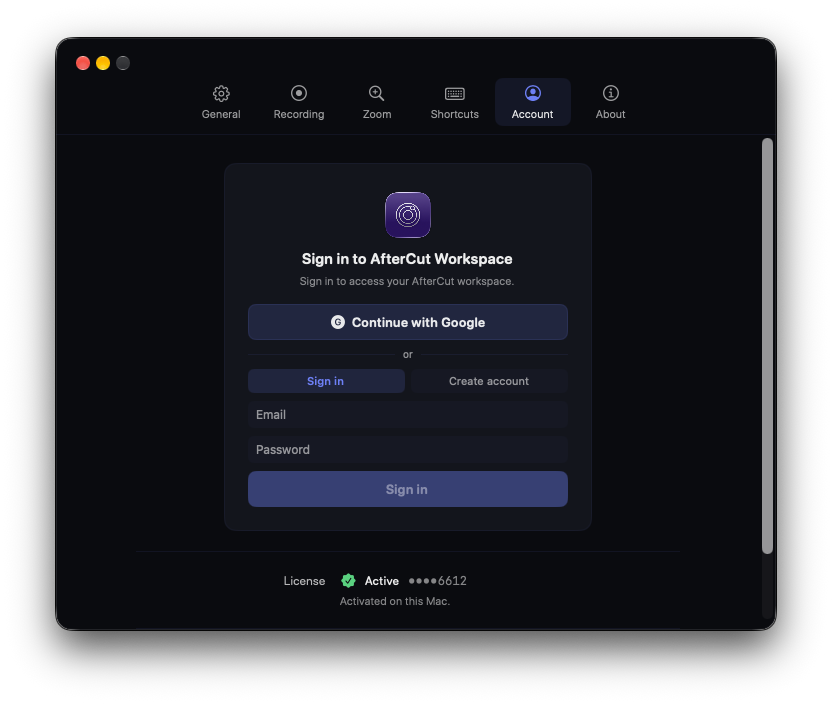
The workspace is a home for you and your team:
Create a team - a team holds your license and everything you share. You can invite people later.
Activate your license - paste the key from your purchase email. Everything you already shared with that key moves into the team, and new shares land there automatically.
Shared recordings - every recording you share to the cloud shows up in one place, with a thumbnail and its length, so your whole team can find it.
Manage each recording - copy its link, protect it with a password, or delete it. Comments on a recording show up there too, next to the moment in the video they're about.
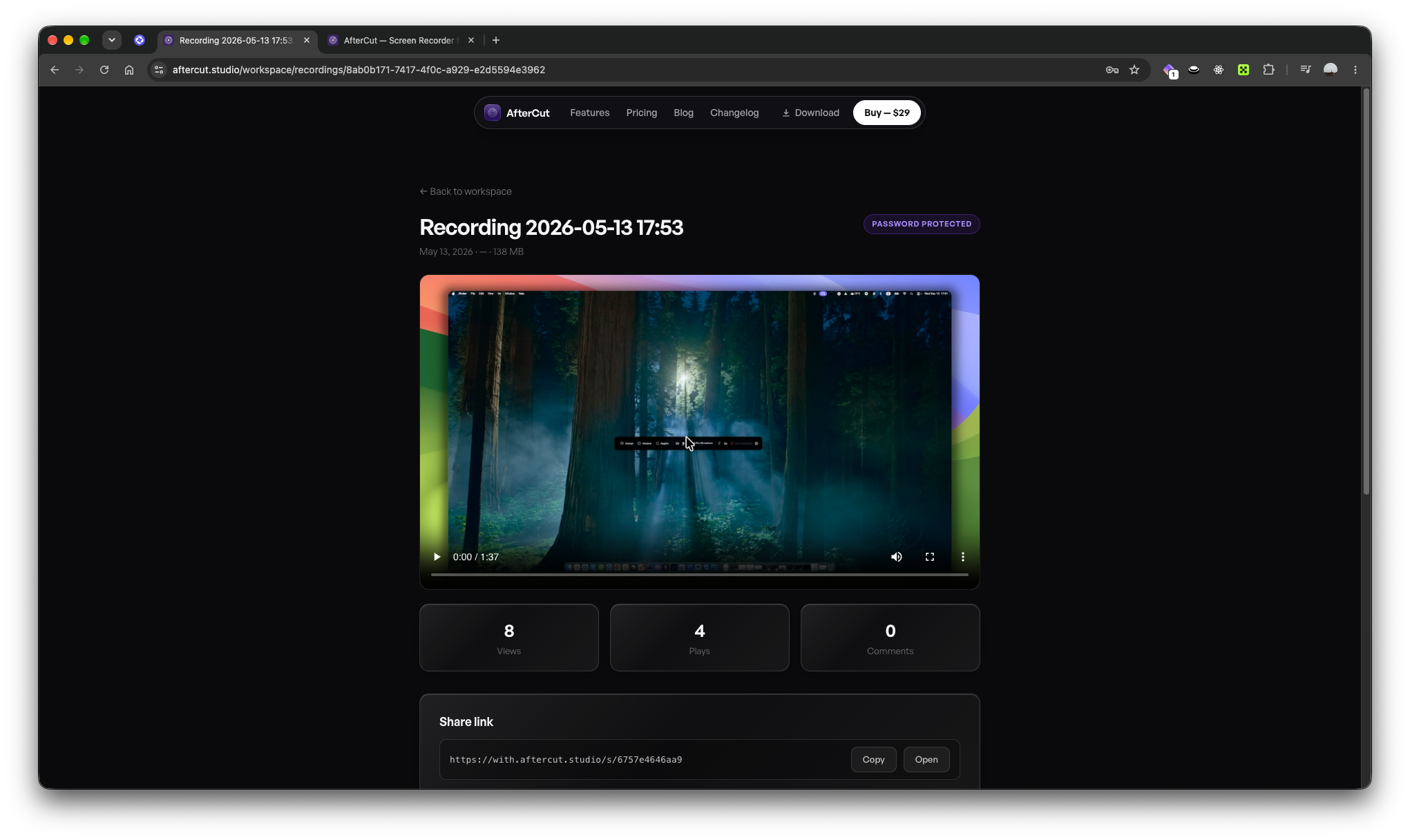
Heads up: starting in November, shared video links will expire automatically after one month. Videos you publish with Publish to Uneed aren't affected, and their links keep working.
In the app, all your accounts are now in one place: Settings → Account. The editor tab that used to be called Account is now Shared, and it lists the cloud links and YouTube uploads of the project you have open.
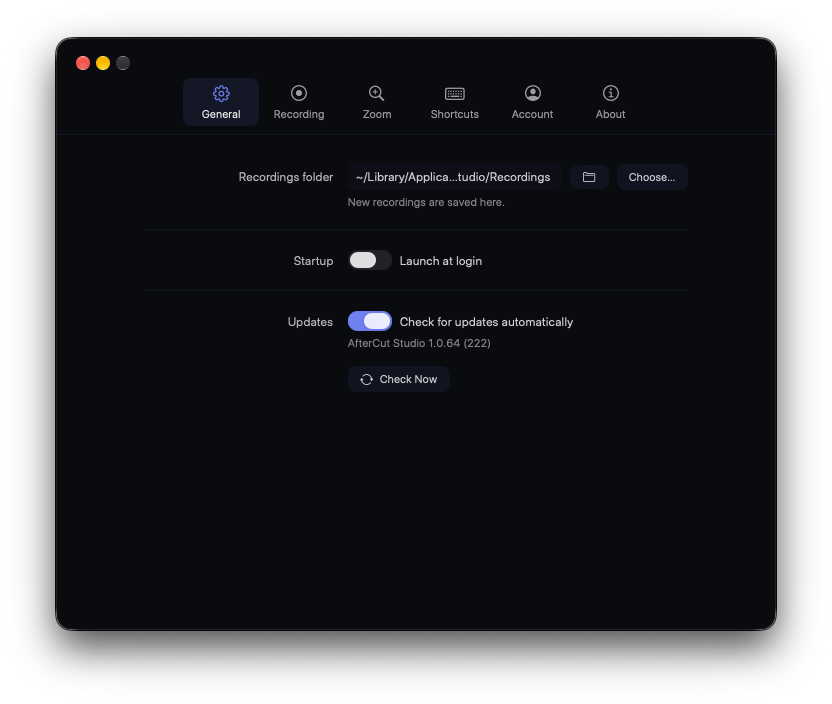
New Settings page
Redesign of the settings page.
Bug fixes
Fixed app hangs at launch.
Fixed hangs when the microphone starts or when you switch mics.
Fixed editor freezes on long recordings while dragging a slider.
Fixed the project library freezing while it loads.
Fewer hangs during recording on Macs with little free memory.
A Bluetooth mic you've just connected no longer fails to start.
The camera bubble no longer changes color while it moves between camera layouts.
Exports with a camera, captions or keystrokes no longer come out slightly washed out.